
What OpenAI launched
The connected apps article describes the launch in detail: "iCloud Mail and iCloud Calendar are separate plugins, and both include read-only contact lookup. They are rolling out globally to all ChatGPT plans on web, desktop, and iOS, subject to workspace app controls. Standalone Contacts and Reminders plugins are outside this launch."
A few points follow from that:
- Mail and Calendar are two connections. OpenAI's account guide says to "Connect iCloud Mail and iCloud Calendar separately if you want both services", and that "A plugin installation does not authorize the other service."
- Contacts come along, read-only. Both plugins can look up contacts, but there's no separate Contacts or Reminders plugin in this launch.
- It's rolling out. If you don't see it yet, the release is still reaching accounts.
- Calendar can change things. The release note mentions updating calendar events, so this isn't only a read connection.
Official plugins and look-alikes
The ChatGPT plugin directory also lists third-party apps that read iCloud mail and calendars, some with similar names. The plugins in this launch are the iCloud Mail and iCloud Calendar plugins described in OpenAI's own help articles. For any app made by someone else, OpenAI says data shared with it is handled under that app's own terms and privacy policy, which you see before you enable it. Check who publishes a plugin before you give it an Apple password.
How the connection works
iCloud connects with a password made for the purpose, not your Apple sign-in. The account guide explains: "iCloud uses an Apple app-specific password in its connection form."
For Mail, you enter your iCloud Mail address ending in @icloud.com, @me.com, or @mac.com. For Calendar, you enter your primary Apple Account email address, which may be different. The guide is firm about the password itself: "do not use your regular Apple password or paste a password into the conversation." You create the app-specific password in your Apple account settings and enter it only in the connection form.
You connect from Settings > Plugins: select the plugin, install it if needed, and complete the connection. After that, you can mention the plugin with @ in a chat or pick it from the + menu.
What ChatGPT asks before it acts
How freely ChatGPT uses the connection depends on your app permission setting. OpenAI's permissions article lists the options, including Always ask, where ChatGPT asks before reading app information or making changes, and Allow read actions, where it reads without asking but asks before making changes. The article also lists sending an email and creating or editing a record among the actions that may need extra review.
Permissions control when ChatGPT uses the access it has. The connected apps article is clear that they are a separate thing from memory: "App permissions are separate from settings that apply generally to all conversations in ChatGPT, such as Memory, personalization, data retention, and your choices about whether content may be used to improve models."
Where information from your inbox can end up
Once a plugin reads an email or an event, the information can show up in several places. They don't all have the same controls.
In the chat itself
The simplest case: you ask about an email, ChatGPT reads it, and the answer is in that chat. The chat stays in your history like any other. OpenAI's memory FAQ notes that disconnecting an app "does not delete past conversations that already used app content."
In memory
This is the case the launch coverage skips. The connected apps article says that with Memory on, ChatGPT "may remember relevant information accessed from the app" unless the app or connected source restricts it. OpenAI's help articles for the iCloud plugins don't say whether these plugins restrict Memory from saving what they read, so the safe reading is that they may not.
The memory FAQ lists where ChatGPT's memory can draw from, and one of the sources is "content from connected apps, such as Gmail". An iCloud inbox is the same kind of source.
When an answer uses personal context, Sources may appear below it. The FAQ says Sources can point to things like "a past chat, saved memory, custom instruction, file, or connected email that contributed to personalization."
In other apps you use in ChatGPT
The connected apps article describes the other direction too. Apps you enable may use relevant context from your ChatGPT conversations, and with Memory on, "it may also leverage relevant information from memories" when an app responds to your request. If something from your inbox becomes a memory, other apps you use in ChatGPT could draw on it under those rules.
In model training
On personal plans, the connected apps article says OpenAI may use information accessed from apps to train its models if Improve the model for everyone is on in your data controls. For ChatGPT Business, Enterprise, and Edu, it says OpenAI does not use information accessed from apps to train models by default. Our guide to what turning off ChatGPT memory stops separates the memory switch from the training switch.
What disconnecting does and doesn't do
Disconnecting is the natural thing to try when you change your mind. The account guide says: "Disconnecting stops future access through that account."
It doesn't clean up what's already there: "Disconnecting an app does not automatically delete existing or archived conversations, saved files, your Memory summary, or other saved memories."
There's a second step specific to iCloud: "Disconnecting an iCloud connection in ChatGPT does not revoke its password at Apple." The app-specific password keeps working at Apple until you revoke it there. OpenAI notes that other connections using that password may also stop working when you do.
And if you change or reset your main Apple password, the guide says to "create a replacement app-specific password first" before reconnecting. Reconnecting Mail doesn't update Calendar, and the other way round.
What people try first
Connecting and assuming it's read-only. Contact lookup is read-only; Calendar can update events. Check your permission setting.
Assuming the inbox stays in the chat. With Memory on, ChatGPT may remember relevant information it read through the app.
Disconnecting to erase what it learned. Disconnecting stops future access. It doesn't delete conversations, your memory summary, or saved memories.
Forgetting the password at Apple. Disconnecting in ChatGPT leaves the app-specific password active until you revoke it with Apple.
Treating every iCloud plugin as official. Third-party apps with similar names follow their own terms.
The Fix: Decide memory before you connect, keep inbox details out, and clean up properly
Step 1: Set permissions and memory before the first request
Before you connect, decide how much you want ChatGPT to do without asking. Always ask is the most cautious setting; Allow read actions removes the prompt for reading but keeps it for changes. You'll find these under Settings > Plugins > Permissions, or under Apps on some accounts.
Then decide whether inbox content should ever reach memory. If the answer is no, the simplest control is the one that applies to the conversation, not the app, which is covered next. If you'd rather not use memory at all, our guide to what ChatGPT's memory summary leaves out explains what you're switching off.
Step 2: Use a temporary chat for inbox questions you don't want remembered
The memory FAQ describes the strongest per-conversation control: "Temporary chats do not create or update memories, even with personalization on." Before you start one, you can choose whether it uses existing memories, custom instructions, and plugins; choosing Unpersonalized means none of them.
Two details matter here. The choice is made before the conversation starts, and OpenAI says you can't change it afterward. And a temporary chat set to Unpersonalized doesn't use plugins, so if you want ChatGPT to read your inbox in a temporary chat, keep plugins on for it. Memory still isn't created or updated either way. Saving a temporary chat converts it into a regular chat, which then follows your normal settings. Our guide to temporary chats and memory shows how to check what one can see.
For regular chats, watch the Sources under answers. If something from your mail appears as personal context where you don't want it, that's the signal to remove it.
Step 3: When you remove something, remove it everywhere
If a detail from your inbox has already reached memory, OpenAI's removal steps apply the same way they do for anything else. The FAQ says to delete the saved memory and the chat where the information came up, then remove it from other sources, including connected apps. Its list of options includes "Disconnect an app that contains the information when you no longer want ChatGPT to access it."
When you stop using a plugin:
- Disconnect it in Settings > Plugins.
- Revoke its app-specific password with Apple.
- Review your memory summary and saved memories for anything that came from your mail or calendar.
- Delete chats you no longer want, including archived ones.
Our guide to making ChatGPT forget something walks through each of those stores in order.
Setting this up in MemoryLake
Connecting an inbox gives ChatGPT a large, constantly changing source, and some of what it reads may become memory. The facts you actually want an assistant to rely on, such as which projects are active, who your clients are, and how you like things written, are a much smaller set, and they're easier to manage when you choose them yourself.
MemoryLake is a memory layer for keeping that kind of context in one list you maintain, available to ChatGPT and the other assistants you connect, such as Claude Code and Codex.
You write the entries yourself, in your own words. Nothing is read out of, written to, or deleted from your iCloud Mail, your iCloud Calendar, your ChatGPT memory, your chats, or any vendor's store. If something needs to leave ChatGPT's memory, the steps above are still the way to remove it.
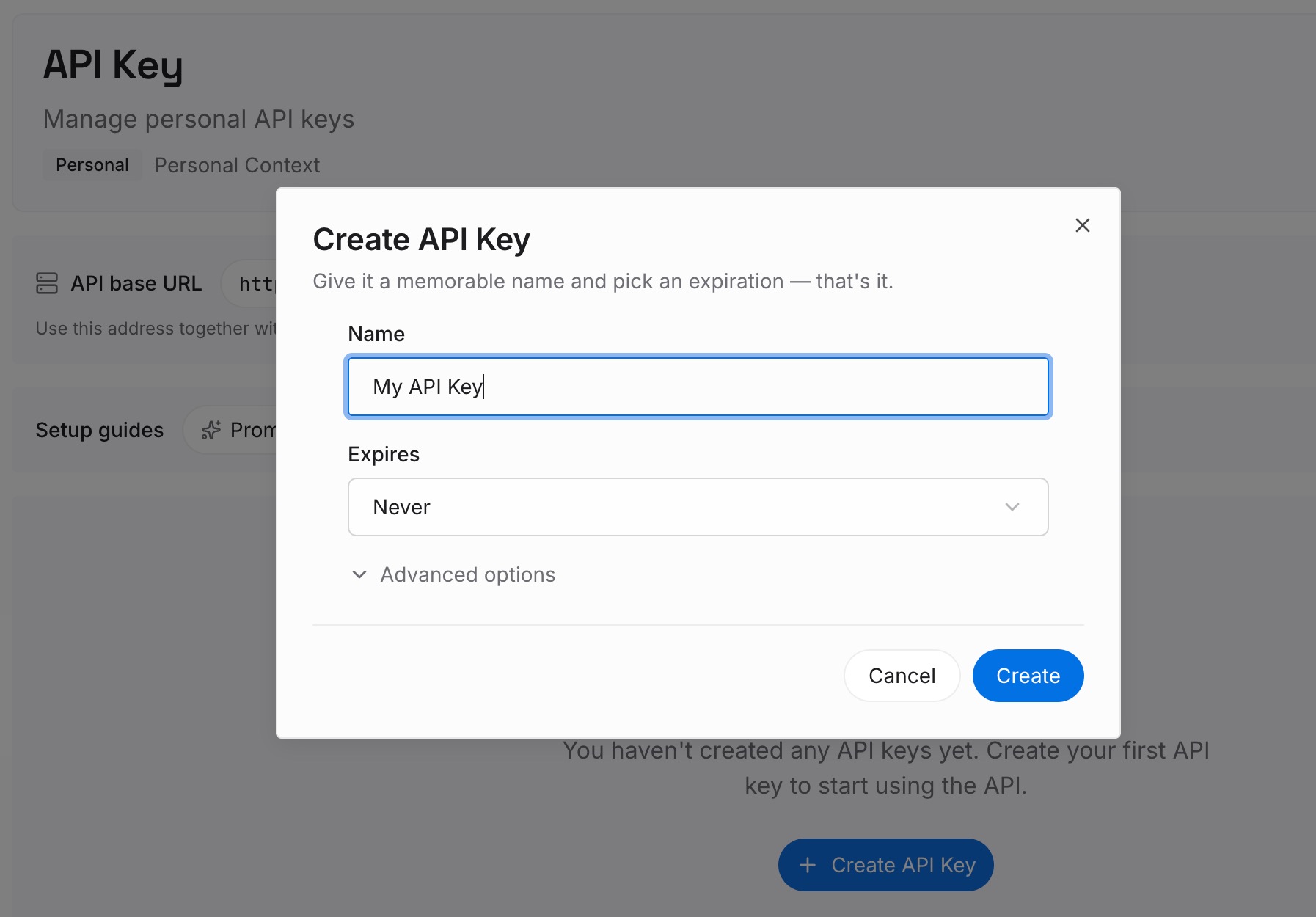
Step 1: Create an API key
Sign in and generate a key from the dashboard. The key belongs to your MemoryLake workspace and is separate from your ChatGPT account and your Apple Account.
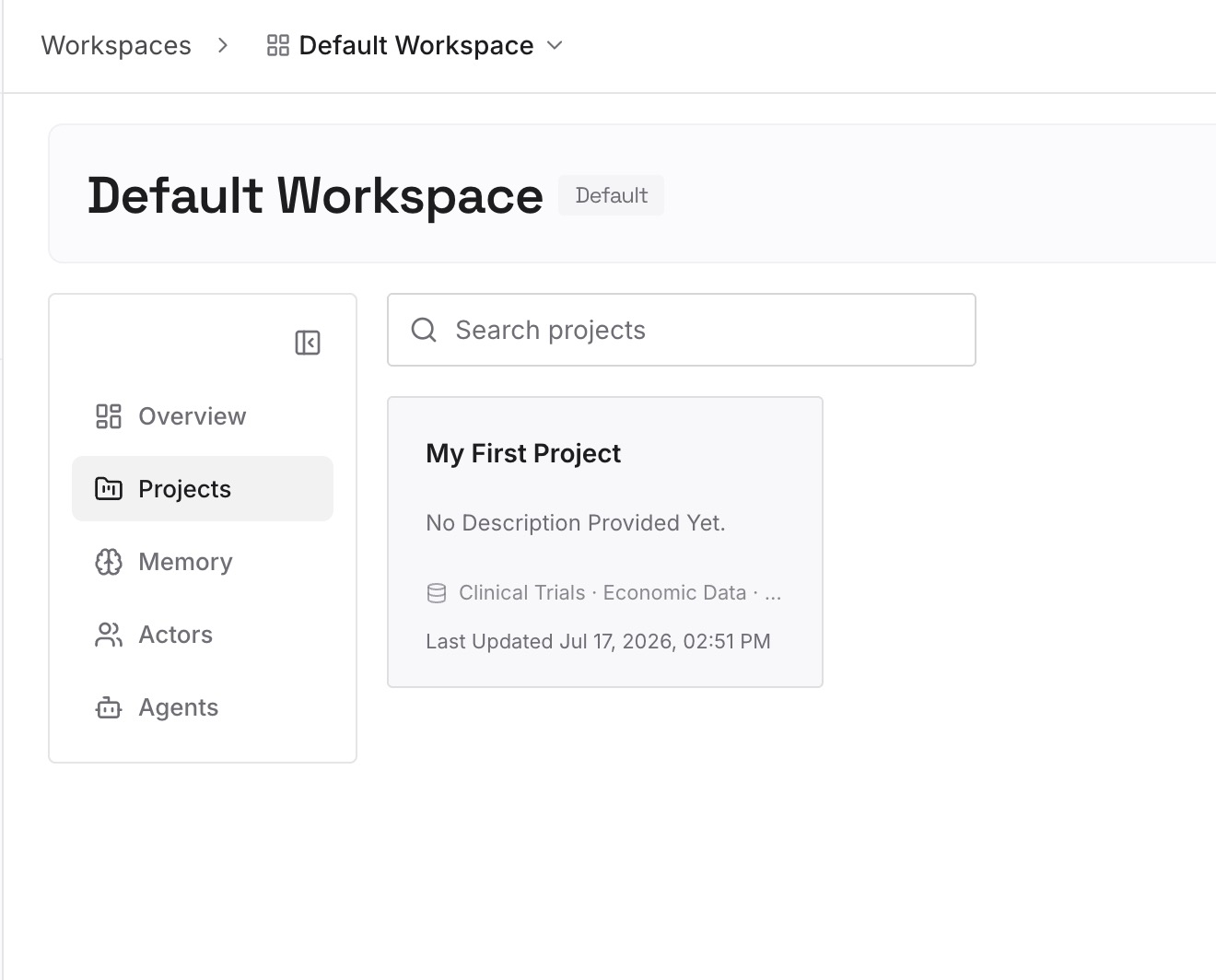
Step 2: Upload your first memories
Start with the few facts you'd want any assistant to know without reading your inbox: current projects, recurring meetings by type rather than by attendee, and your working preferences. One point per entry, dated, with nothing you'd mind seeing in a different tool.
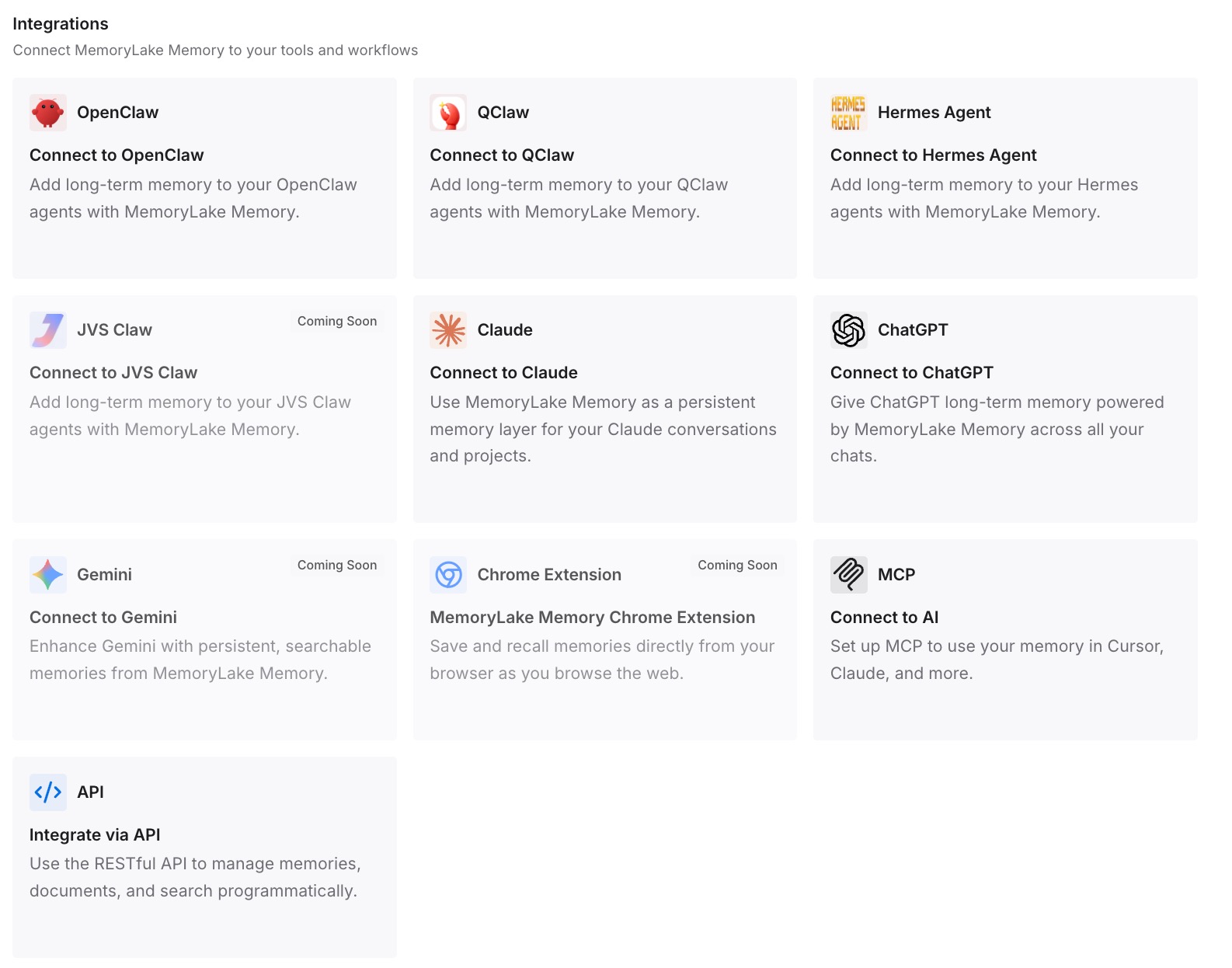
Step 3: Connect your AI & agents
Connect ChatGPT and the other assistants you use. Your inbox stays a source you query when needed, and the context you rely on stays a list you wrote.
What this changes in practice
The first difference is that you connect knowing where information can go: into the chat, possibly into memory, and from memory into other apps you use in ChatGPT.
The second is that you use the right control for the job. Permissions decide when ChatGPT reads and acts. Temporary chats keep a conversation out of memory. Disconnecting stops future access.
The third is that leaving is complete. You disconnect, revoke the password at Apple, and clear what was remembered. Our guide to why ChatGPT connectors don't remember your decisions covers the opposite problem: what connected sources don't keep.
Best practices for iCloud Mail and Calendar in ChatGPT
Use an app-specific password, never your Apple password. And never paste one into a chat.
Start with Always ask. Loosen it once you know how you use the plugin.
Ask inbox questions you don't want remembered in a temporary chat. Temporary chats don't create or update memories.
Check Sources under personal answers. They show when a connected email contributed.
Connect only what you need. Mail and Calendar are separate; you don't have to connect both.
Revoke the password at Apple when you disconnect. Disconnecting in ChatGPT doesn't do it.
Review memory after heavy inbox use. Remove anything that came from mail you'd rather ChatGPT didn't keep.
Conclusion
ChatGPT can now connect to iCloud Mail and iCloud Calendar as two separate plugins, each with read-only contact lookup, using an Apple app-specific password. With Memory on, ChatGPT may remember relevant information it reads through them, unless the app restricts that, and OpenAI's iCloud articles don't say these plugins do.
Set permissions before your first request, use temporary chats for inbox questions you don't want remembered, and when you stop, disconnect, revoke the password at Apple, and clear any memories that came from your mail.